I need more usable space
Shrink or extend an adjacent data volume only after checking backups, file-system health, and free-space layout. Do not delete a recovery partition just to gain a few gigabytes.
See resizing and deletion steps →Partitions help organize storage, separate operating systems, and isolate sensitive data. They can also cause serious data loss when deleted, resized, or encrypted without a recovery plan.
Back up first, identify the exact disk and partition, and never delete EFI, system, or recovery volumes unless you are rebuilding the machine intentionally. Use BitLocker or Device Encryption on Windows, FileVault on Mac, and LUKS on Linux for data at rest. Use an encrypted container when you need to protect only selected files.
A partition is a defined region of a physical disk that the operating system treats as a volume. One disk can hold a boot partition, an operating-system volume, a recovery area, and a separate data volume. The boundaries are logical, but deleting or moving them changes the disk’s structure.
Partitioning works well for dual-boot systems, data separation, backup workflows, and external drives. It is not a backup. If the physical disk fails, every partition on it can fail together.
Shrink or extend an adjacent data volume only after checking backups, file-system health, and free-space layout. Do not delete a recovery partition just to gain a few gigabytes.
See resizing and deletion steps →Stop writing to the disk. Recovery odds fall as new data overwrites old file-system structures.
Follow the recovery sequence →Choose full-disk encryption for lost-device protection, a partition or volume for separated workloads, or an encrypted container for selected files.
Compare encryption scope →
Windows may block deletion since the volume is in use, contains paging or boot files, is protected, or is part of a layout Disk Management cannot alter. Reboot, verify the volume role, and use supported recovery media for legitimate system rebuilds. Do not force deletion until you understand why the choice is disabled.
Use Disk Utility, choose View → Show All Devices, and confirm whether you selected a physical device, APFS container, or volume. Erasing a storage device deletes its contents. APFS usually works through flexible volumes inside a container, so adding a volume may be safer than repartitioning the physical disk.
| Scope | What it protects | Typical tools | Best fit | primary limitation |
|---|---|---|---|---|
| Whole disk | Operating system and local data at rest | BitLocker, Device Encryption, FileVault, LUKS | Laptops and lost-device risk | Data is available after authorized sign-in |
| Single partition or volume | One defined storage area | BitLocker data drive, LUKS volume, encrypted APFS volume | Separated workloads or external disks | Recovery and mounting are platform-dependent |
| Encrypted container | Selected files placed inside a protected vault | Folder Lock, VeraCrypt-style containers | Selective protection and portability | Files outside the container remain unprotected |
Manual BitLocker Drive Encryption is available on Windows Pro, Enterprise, and Education editions. Some compatible Windows devices may offer Device Encryption with a simpler interface, including on certain Home systems. Check controls → Privacy & security → Device encryption and save the recovery key somewhere separate from the encrypted device.
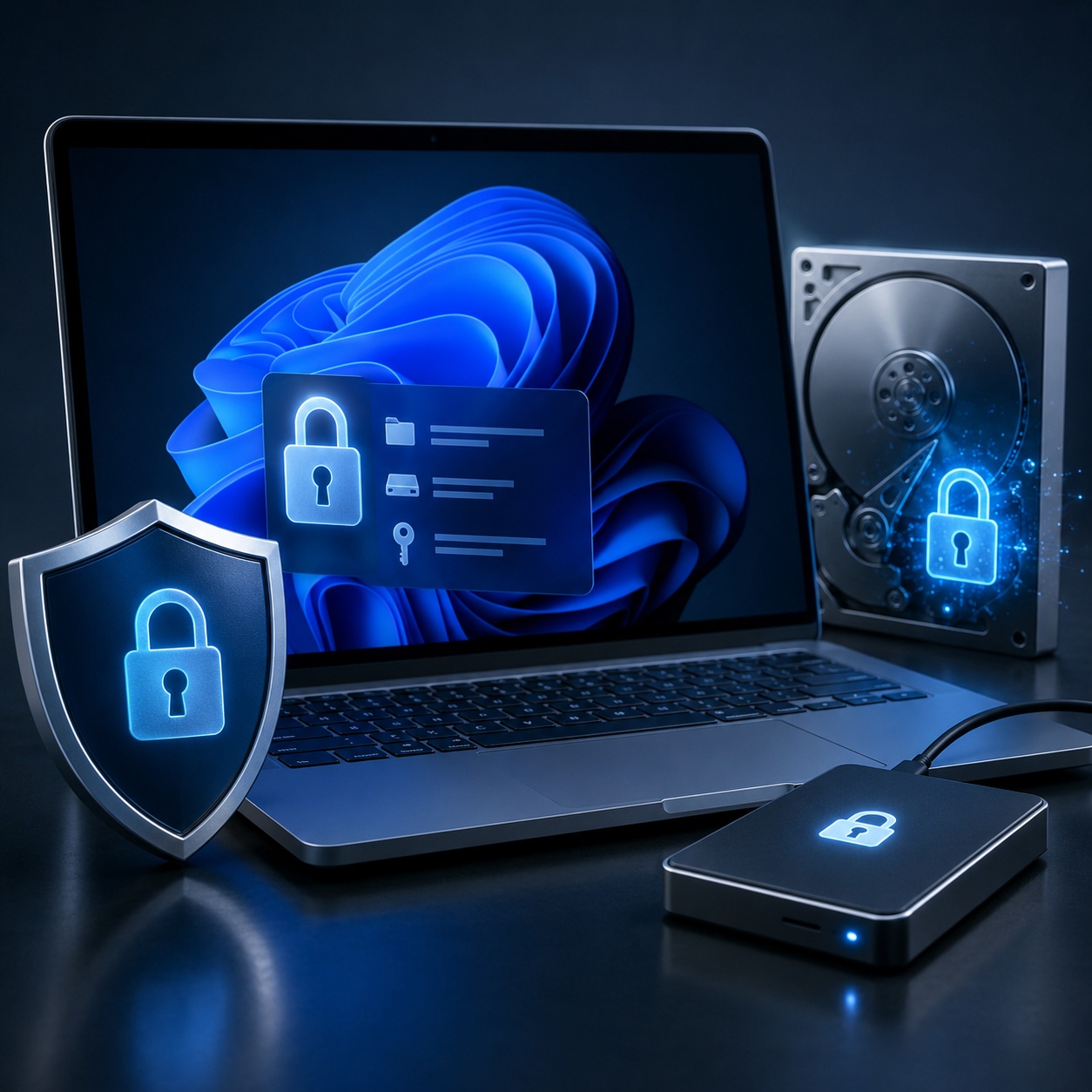
Linux commonly uses dm-crypt with LUKS for block-level encryption. Creating a new LUKS volume normally erases or reformats the selected partition, so verify the device path carefully. For a new Ubuntu installation, installer-managed full-disk encryption is safer for most users than manual command-line partitioning.
A cross-platform encrypted container can be practical when selected files must move between Windows, macOS, and Linux. Whole-device or partition encryption is more disruptive and carries greater recovery risk. Keep software installers, documentation, and recovery material available before relying on a portable encrypted volume.
| Platform | native approach | Typical scope | Recovery model | Key note |
|---|---|---|---|---|
| Windows 11 / 10 | Device Encryption or BitLocker | OS and fixed/data drives | Microsoft account, organization, printout, file, or other saved recovery-key location | Manual BitLocker management relies on edition |
| macOS | FileVault | Startup volume | Account/iCloud workflow or personal recovery key, depending on setup | Store the recovery key away from the encrypted Mac |
| Linux | dm-crypt with LUKS | Partition or whole disk | Passphrase, key file, and organization-selected backup procedures | Distribution installer support varies |
| Android | Platform-managed file/data encryption | Internal local storage | Device credential and account recovery choices | Implementation relies on device and Android version |
| iOS / iPadOS | Platform data protection | Internal local storage | Device passcode and Apple account recovery paths | Strong passcode quality remains important |
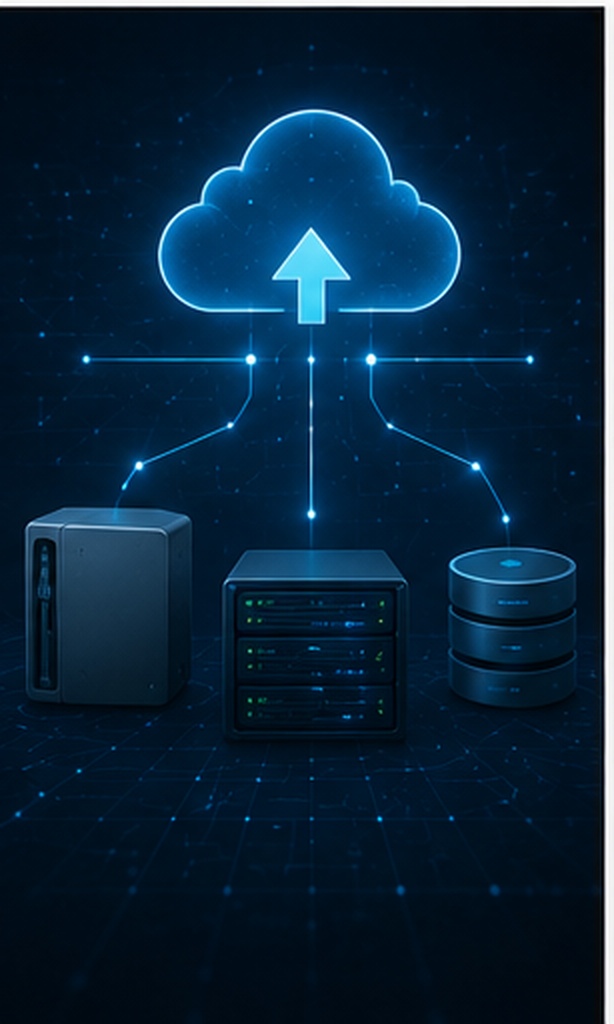
| approach | Difficulty | Security | Cost | Best for | Limitations |
|---|---|---|---|---|---|
| BitLocker / Device Encryption | Low–medium | High for data at rest | Built in where supported | Windows devices and drives | Edition and hardware differences |
| FileVault | Low | High for startup disk | Built in | Mac laptops and desktops | Mac-focused |
| LUKS | Medium–high | High | Free | Linux systems and advanced layouts | Manual setup can be destructive |
| Encrypted container | Medium | High when configured well | Free or paid | Selected files and portability | Requires mounting and disciplined use |
| Folder Lock 10✓ Recommended for selected files | Low | Strong selective encryption | Free download / paid full version | Users who want a guided encrypted locker | Not a replacement for whole-disk encryption |
Of all the choices covered, we recommend Folder Lock 10 when the goal is to protect selected files and folders without repartitioning an entire disk. It offers an encrypted locker workflow and is easier for many users than manually creating and mounting encrypted partitions.
It does not replace BitLocker, FileVault, LUKS, backups, or a tested recovery plan. Use it as a focused protection layer for sensitive files.

Folder Lock 10 is the closer match when the objective is to place confidential files inside encrypted lockers. The researched Windows edition supports local lockers, cloud-connected lockers, linked devices, controlled sharing, portable locker files, file shredding, and privacy-history cleanup. These controls operate above the partition layer, so they can protect chosen data without changing the disk map.
Its important boundary is scope. It does not replace BitLocker, FileVault, or LUKS for whole-device protection. The Windows research specifies 64-bit Windows 10 and Windows 11, while a separate Mac edition is available with a various platform experience. Confirm function parity before building a cross-platform workflow.
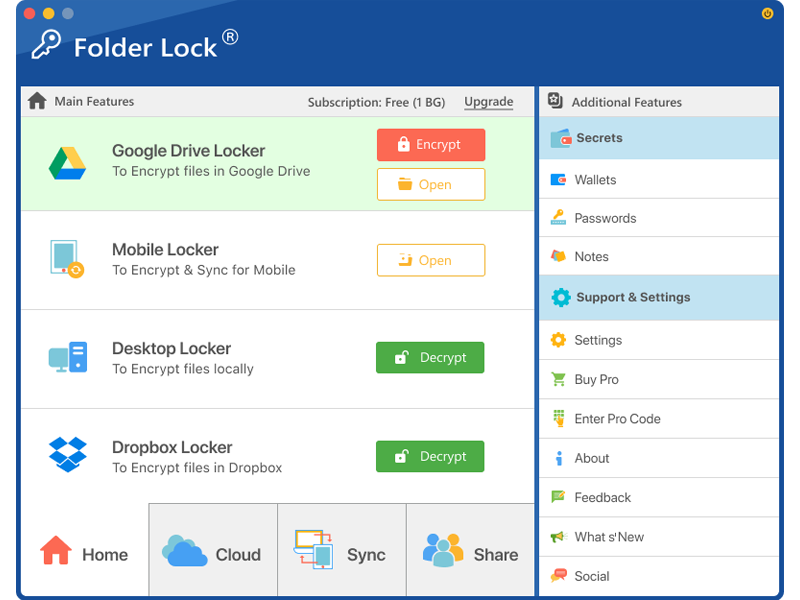
Folder Protect is aimed at controlling what other Windows users or programs can do with selected items. It can block opening, hide an item, prevent deletion, or stop editing while still allowing viewing. Those policies can be applied to files, folders, drives, programs, or selected file types.
This approach is useful on a shared Windows computer when the risk is unwanted changes or casual access. It is not a backup, it does not solve physical disk failure, and access-control behavior should not be presented as full-disk encryption. Driver-dependent functions can also behave differently across Windows releases, so test the current version before relying on it in an organization.
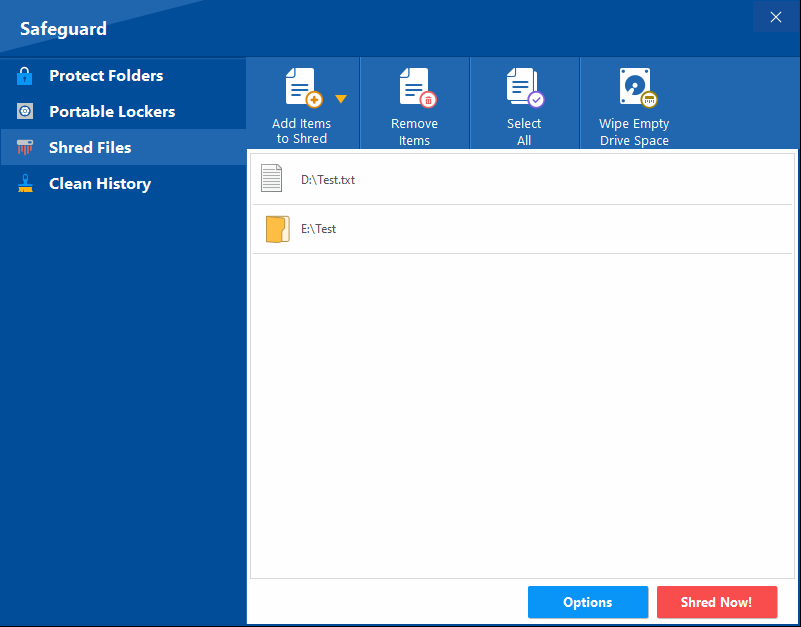
Keep selected files inside an encrypted virtual storage area.
Reduce casual access to chosen files and folders.
Support protected copies as part of a broader backup plan.
Remove selected files more deliberately on supported storage.
Reduce traces that ordinary deletion may leave behind.
Protect selected information without changing the whole disk layout.

Download from NewSoftwares.net. Avoid cracked, preactivated, or repackaged installers since they can include malware or credential theft.
Use a long passphrase that is not reused elsewhere. Store it in a password manager, not in a text file beside the locker.
Choose a location with adequate free space. Keep the locker on a healthy disk and include it in your backup plan.
Place files inside the locker and remove unprotected duplicates only after you confirm the protected copies open correctly.
Lock, reopen, and verify the files. Record licensing and support information separately.

| Capability | Free | Pro |
|---|---|---|
| Encrypted locker capacity | Up to 1 GB | No fixed locker-size ceiling stated in the research |
| Linked devices | 2 | 5 |
| Sharing with additional users | Not included | Included |
| Portable lockers | Not included | Included |
| Folder protection controls | Not included | Included |
| Shredding and history cleanup | Included | Included |
| Research-listed price | $0 | $39.95 |
Before buying: Verify the live checkout price, license duration, device rules, and platform-selected functions. The research material lists the figures above, but purchase terms can change.
Encryption transforms readable data into ciphertext that requires an authorized key. File locking or hiding can add convenience, but encryption is the stronger confidentiality control.
A backup protects availability. A recovery key restores authorized access. Keep both separate from the encrypted device and test them before a failure.
File-system compatibility and encryption compatibility are separate. A drive may be readable by two systems while its encryption format is not supported by both.
Wear leveling means traditional overwrite-based shredding is less predictable on SSDs. Whole-device encryption plus a supported reset, sanitize, or crypto-erase process is generally preferable.
An ordinary USB flash drive and a dedicated USB security key are not interchangeable. A FIDO2 key contains hardware and firmware designed to perform cryptographic authentication without exposing the private key. A flash drive merely stores files.
Not as a true FIDO2 authenticator. A normal drive may store a BitLocker startup or recovery key in selected configurations, or participate in external login software, but that is a various security model.
Use a compatible FIDO2 security key and register it through your Microsoft account security controls or supported Windows sign-in choices. Follow the provider’s prompts to create a PIN and touch or insert the key when requested.

For a local network, enable File Sharing on the Mac, add only the required folder, limit users and permissions, then connect from Windows using the Mac’s network address. Disable guest access unless it is genuinely required.
Start with a file system both platforms can read, commonly exFAT for general exchange, then choose an encryption format supported on both systems. Native BitLocker and FileVault workflows are not equally portable across operating systems. An encrypted container with compatible software on each machine can be more practical.
Use a cross-platform encrypted container or a strongly encrypted archive with a modern format and a unique passphrase. Test opening a non-sensitive sample file on both systems before moving the only copy of important data.
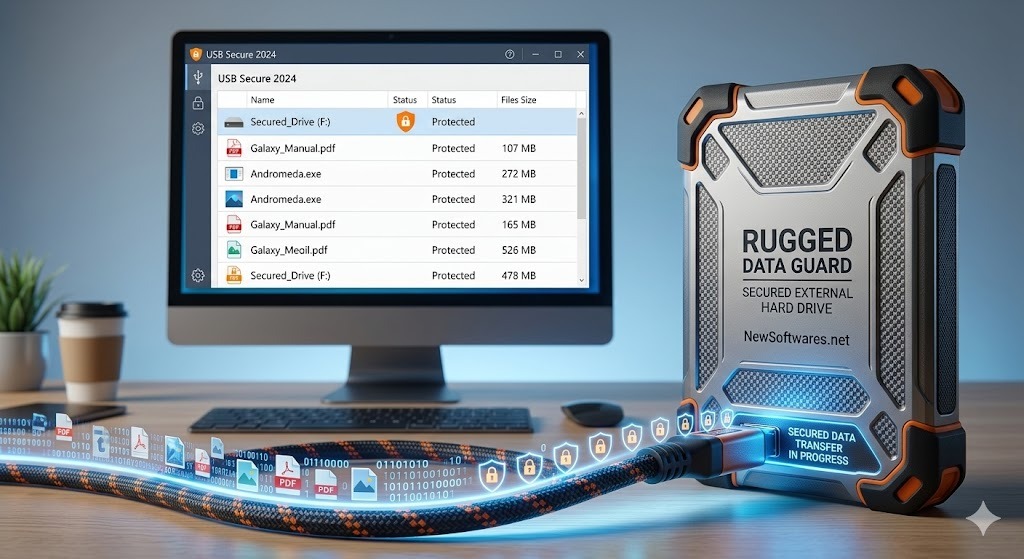
Privacy sets the rules for collection and use. Security supplies the controls that enforce those rules. An encrypted partition can prevent a thief from reading local files, but it cannot stop an app from collecting information you voluntarily upload.
Data brokers combine public records, purchase histories, app data, location signals, advertising identifiers, surveys, and inferred attributes. The resulting profiles may be sold or shared for advertising, identity verification, analytics, risk scoring, or people-search products.
Depending on your location and the organization involved, you may have rights to access, correct, delete, restrict, or opt out of certain uses or sales of private information. Use the company’s privacy request page, verify your identity through legitimate channels, keep copies of requests, and follow up within the stated response period.
Start with direct opt-out requests to people-search and broker sites, account deletion tools, search-engine removal requests for qualifying content, and privacy controls in important services. Paid removal services can reduce repetitive work, but they cannot erase public records or guarantee permanent removal.
Choose tools that limit external tracking, block known trackers, isolate site data, and publish clear privacy policies. Remember that signing into an account can reconnect activity to your identity regardless of the browser.
| Problem | Likely cause | Safe fix |
|---|---|---|
| Delete Volume is greyed out | System use, protected role, or unsupported layout | Verify labels and boot role, reboot, and use supported recovery media only for an intentional rebuild |
| BitLocker asks for a recovery key | Hardware, firmware, boot, or policy change | Use the saved 48-digit key from your account, organization, printout, or stored file |
| FileVault password is forgotten | Account credential unavailable | Use the configured Apple account or personal recovery key path |
| External drive is unreadable on another OS | Unsupported file system or encryption format | Return to the original system, back up, then reformat or migrate using a cross-platform plan |
| Accidentally deleted recovery partition in Windows 11 | Wrong partition selected | Do not create new volumes; use vendor recovery media or reinstall after backing up accessible data |
| Encrypted partition will not mount | Wrong credentials, damaged header, or software mismatch | Try authorized recovery keys and backups; do not use bypass claims or write changes to the source |
It is the practice of creating, resizing, deleting, formatting, encrypting, backing up, and monitoring disk partitions without exposing data or damaging the operating system. Good management combines a verified backup, correct disk selection, recovery-key storage, and encryption suited to the device.
Partition management changes how a physical disk is divided into logical volumes. Security controls such as BitLocker, FileVault, LUKS, or encrypted containers protect the data stored in those volumes. The safest workflow is backup first, verify the target disk, make one change at a time, then confirm boot and recovery access.
Yes, when you have a current backup and understand which volume you are changing. Deleting, formatting, shrinking, or converting the wrong partition can cause permanent data loss or an unbootable computer.
Use native disk tools for routine partition work and native full-disk encryption when available. Use an encrypted container or dedicated file-encryption tool when you need to protect only selected data or move it between systems.
Do not delete EFI, recovery, or system partitions, do not resize a disk without a backup, do not store recovery keys only on the encrypted drive, and do not interrupt power during a partition operation.
Privacy concerns who may collect, use, or share your information. Security concerns the safeguards that prevent access by unauthorized users, alteration, loss, or disclosure. Encryption is a security control that supports privacy.
Check breach-notification services, review security alerts from account providers, search your email addresses in reputable breach databases, and monitor financial and identity accounts. Change reused passwords and enable multi-factor authentication after a confirmed exposure.
Some are, especially open-source tools and native operating-system functions with clear documentation. Check the publisher, update history, permissions, privacy policy, independent audits, and whether the installer bundles unwanted software.
frequent sources include tracking pixels, cookies, device identifiers, app permissions, loyalty programs, data brokers, advertising networks, location data, and inferred interests built from browsing or purchase activity.
Use unique passwords stored in a password manager, enable multi-factor authentication, keep devices updated, encrypt portable devices, and maintain a tested backup. No single control replaces the others.
No. A VPN can protect traffic on an untrusted network and hide your IP address from some parties, but it does not stop account tracking, malicious downloads, browser fingerprinting, or data collection by services you sign into.
Prefer HTTPS, avoid sensitive activity on unknown networks, disable automatic joining and file sharing, use a trusted VPN when appropriate, and forget the network after use.
A USB security key is usually a dedicated FIDO2 or security-token device that performs cryptographic authentication. It is not the same as an ordinary flash drive used for file storage.
Not as a true FIDO2 hardware key merely by copying files to it. Some systems can use a USB drive for a recovery key or custom login workflow, but that does not give the tamper-resistant cryptographic properties of a dedicated security key.
For account sign-in, register a compatible FIDO2 security key in the account or Windows sign-in controls. For BitLocker recovery, you may save a recovery key to removable media where permitted. These are various functions and should not be confused.
Windows uses Device Encryption or BitLocker depending on hardware and edition. macOS uses FileVault. Linux commonly uses dm-crypt with LUKS. Modern Android and iOS devices use platform-managed file or data encryption tied to the device passcode and secure hardware.
Stop writing to the affected disk, disconnect it if practical, image the drive, and recover to a various disk. If the partition contained critical or business data, use a qualified recovery provider instead of experimenting on the original media.
Normally no. Strong encryption is built to make the data unreadable without authorized credentials. Check account-based recovery, saved keys, organizational escrow, backups, and vendor support. Avoid tools claiming to bypass encryption.
No. It protects selected files through encrypted lockers and related safeguards. Use BitLocker, FileVault, or LUKS when the requirement is encryption of the operating-system disk or the entire device.
Folder Lock 10 centers on encrypted lockers and related file-security tools. Folder Protect is a Windows access-control utility that can hide items or block opening, editing, and deletion. Neither product replaces a tested backup.
The supplied research lists portable lockers and folder-protection controls as Pro functions. It lists the free tier with a 1 GB locker limit and two linked devices. Confirm the live plan comparison before relying on these limits.
Use native partition tools for layout changes, but treat every delete, resize, and format operation as potentially destructive. A current backup, verified disk identity, and protected recovery keys matter more than the partition tool you choose.
For whole-device protection, use the operating system’s full-disk encryption. For selected sensitive files, an encrypted locker can be easier to manage. Folder Lock 10 is our practical recommendation for that narrower job, not a substitute for full-disk encryption or backups.